tisdag 20 oktober 2009

ISurfaceScrollInfo and you, Part Zero.

I’ve been working on this secret project with a colleague of mine, and one part of the project is to create a custom panel for the Surface. So what’s so special about the panel I’m doing? I’m want to replicate the “page panel” found on the iPhone and the Android phones. To clarify, I do not know the official name of the panel but I will call it page panel until someone either tell me the official name or come up with a better name. 

So what is the definition of a page panel? I would say these points would define it:

  • Only one item has focus. Other items might be seen but only one will be focused. I will explain in more detail what focus really mean when the time comes.
  • When the focus moves to another item the panel is animated. Just like the mobile versions (see the youtube-link above).
  • The items are arranged on a straight line, either horizontally or vertically. No wrapping with other words. I will implement horizontal support because that’s what I want, but it shouldn’t be any problem implementing vertical arrangement as well, both from a developers and a user experiences point of view.
  • Changing the item focus are done by the user using finger contacts (or any contact?). I have proposed to trigger focus change contact up, if the contact is out of a certain bound. We’ll get to this later.

A custom panel with custom scrolling, or to be more concrete: inherit from Panel and implement the ISurfaceScrollInfo interface. The guys at the Surface Community recommended me to look at the LoopingPanel, which does exactly that!

I have decided to split my story into several parts, just to make it more exciting and to avoid writing the longest blog post in the history of man. This part is an introduction. The next part will be about implementing a custom Panel, but later on I will tell you about implementing the ISurfaceScrollInfo.

To be continued…

lördag 17 oktober 2009

Multi touch in WPF 4.0 and VS2010

Touch and multitouch is something that has been dear to my heart last year. It all started when Connecta bought a Microsoft Surface table for almost a year ago. Even then, Microsoft talked about the need to work with, and learn multi-touch, and now we see Windows 7 and WPF 4.0 come with native support for multi-touch.

WPF 4.0 has added a number of events to the UIElement that relates to muti touch. The .NET APIs are based on native Win32 APIs that are available only in Windows 7. UIElement is the base class that defines the essence of visual controls for layout, input and events. The events that exist today (Beta 1 of VS2010) are: ManipulationStarted Event,
ManipulationCompleted Event,
Manipulation Delta Event,
ManipulationInertiaStarting Event and ManipulationBoundaryFeedback Event.

By default, a UIElement never recieves events relating to manipulation unless Manipulation Mode is set to a value other than None. With the help of Manipulation mode you can control the type of manipulation you can make on an item. It can for instance be translated in X and/or Y axis, rotate, or scale.

In beta 1 of. NET Framework 4.0 the are events for manipulationare are there but there are not any WPF controls that make use of them. In future versions it will be easy just turn on the touch controls on eg sliders or scrollviewers directly in XAML.

When the ManipulationDelta event is captured in a Window you get a ManipulationDeltaEventArgs. That can be used to find out what changes have occurred on the item manipulated. With the method GetDeltaManipulation you get a System.Windows.Input.Manipulation which contains all of the transformation data that was available when the event occurred. The information can then be used to perform translatation operations on the object. A bit complex, but a piece of code probably makes it easier to understand!

Please note that the ManipulationDelta event will never fire with an ordinary mouse. There must be some kind of touch device. With the help of a project on CodePlex called Multi-Touch Vista you can simulate the use of multiple touch points with normal mouse or a touch pad.

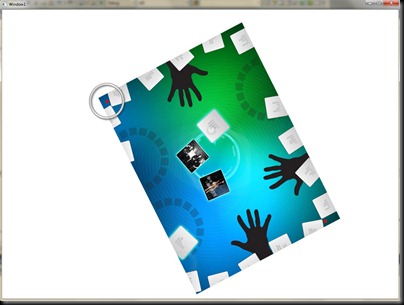
In the XAML-file I add an Image to the Canvas. To that I connect a MatrixTransform so that I can access it from code. I also add an event handler for the ManipulationDelta.

<Window   x:Class="WpfApplication13.Window1" xmlns="http://schemas.microsoft.com/winfx/2006/xaml/presentation"
xmlns:x="http://schemas.microsoft.com/winfx/2006/xaml"
Title="Window1" Height="300" Width="300"
WindowState="Maximized" ManipulationDelta="Window_ManipulationDelta">
<Window.Resources>
<MatrixTransform x:Key="InitialMatrixTransform">
<MatrixTransform.Matrix>
<Matrix OffsetX="200" OffsetY="200"></Matrix>
</MatrixTransform.Matrix>
</MatrixTransform>
</Window.Resources>
<Canvas>
<Image Width="100" Source="/WpfApplication13;component/Images/Sonicspree.jpg" ManipulationMode="All" RenderTransform="{StaticResource InitialMatrixTransform}" ></Image>
</Canvas>
</Window>


In the code behind I use DeltaManipulation to move the image based on input:


private void Window_ManipulationDelta(object sender, ManipulationDeltaEventArgs e)
{
var delta = e.GetDeltaManipulation(this);
var image = e.OriginalSource as Image;
var matrix = ((MatrixTransform)image.RenderTransform).Matrix;
var originalCenter = new Point(image.ActualWidth / 2, image.ActualHeight / 2);

//Translate on the x and y-axis
matrix.Translate(delta.Translation.X, delta.Translation.Y);

//Get the new center point and rotate around that based on the delta
var center = matrix.Transform(originalCenter);
matrix.RotateAt(delta.Rotation, center.X, center.Y);
center = matrix.Transform(originalCenter);

//Scale the matrix based on the delta
matrix.ScaleAt(delta.Scale, delta.Scale, center.X, center.Y);

//Apply the new MatrixTransform
image.RenderTransform = new MatrixTransform(matrix);

e.Handled = true;

}


Note the two red dots representing the two mice I have connected to this computer. The code in this example is based on a video on You Tube that also shows the application in action.


MultiTouchVS2010 


måndag 5 oktober 2009

StartupUri and you.

Let me start with introducing myself. My name is Joakim Rosendahl and I’ve been at Connecta since April first 2009. Became a member of Connecta’s Surface team a month later. I have an academic background in Computer Science and I’ve mostly been working with WinForms and WPF since 2007.

Enough about me, because I’m going to talk about something that happened to me in my latest Surface project. I had the ambition to implement a surface project using the M-V-VM design pattern. I took the naive approach and removed the StartupUri statement in App.xaml and added code below in the code-behind.

protected override void OnStartup(StartupEventArgs e)
{
base.OnStartup(e);

var demoViewModel = new DemoViewModel();
var demoView = new DemoView
{
DataContext = demoViewModel
};

MainWindow = demoView;
MainWindow.Show();
}

The idea is to hook up the view model (DemoViewModel) before showing the main view (DemoView.xaml) which is a SurfaceWindow. This worked fine until I hooked up to the Surface Shell on our surface board. Somehow, when I start the application in the Surface Shell the Shell is on top of my application. When I alt-tab I can see my application running in the background. For some reason my main view doesn’t get incorporated into the Shell as it should do.

Anyway, I made a workaround, restored the StartupUri property to “DemoView.xaml” and added some non-M-V-MV code. I’ve posted this problem on the Surface Community for a couple of weeks ago. The Surface support has contacted me on email to this matter. But a simple solution would to not make the main SurfaceWindow to a View (as according to the M-V-VM design pattern) but instead to something like the sample code that Dan Cravier posted on his blog ages ago. I will still update when I get a proper solution from the Surface Support.

onsdag 23 september 2009

Nice PoS application in Germany

I just found a video of a retail, position of sales, Surface application in Germany. It looks like it is at the telephone company O2 made by Syzygy. When will we see the first publicly available Surface application in Sweden?

tisdag 15 september 2009

360 degree UI – always a good thing?

Since Microsoft Surface has the form of a table it offers a unique way of social interaction around a computer. Users can sit around the table and participate on equal terms. To be able to achieve this, the designers and developers must focus very hard on creating a user interface and a user experience that supports 360 degree user interface. This, I would say, is one of the biggest challenges for a team building successful applications for Microsoft Surface and something that we always focus on early in the design process.

Yesterday I attended a Surface workshop were we planned an application that might have an advisor-client user profile. With that I mean one professional sitting on one side of the table and the client(s) sitting on the other side. It could be in a bank with an employee and a client or at health facility with a physician and a patient. Based on our previous experiences we still focused on a 360 degree user interface but in that context, is that really necessary? Couldn’t it be okay to have the user interface mainly focus the unfrequent users, i.e. the client or patient?

I think so! And today I saw a video of a banking application that does exactly that. Take a look at Hawanedo Surface from Figlo. They have created an application for the financial industry to offer financial advice on Microsoft Surface. The user interface is entirely facing the two clients at the bank and I believe that is great in that context. If you were to build an application like that with 360 degree user interface chances are that you would end up with a worse outcome.

So when designing application for Microsoft Surface, think about the physical context of where the application will exist and how your users will be placed around the table when they interact with it. Also don’t just create individual personas but also groups of personas and design the application for them.

Hopefully I will be able to tell you more about the application that we are planning in the near future.


onsdag 9 september 2009

Share your Surface experience

A good sign for a growing developer community is when new tools pop up and experiences are shared in the open. Lately more and more developers have gotten in touch with Microsoft Surface, and it has resulted in several code projects on Codeplex. I want to digitally high five the teams for sharing their work with us. In my opinion the fastest way to a mature developer community is through sharing knowledge and experience, which is exactly what the Surface and NUI community needs.

A quite usuful project web is the Surface Academy 2009 Toolkit. On the project web the Microsoft Surface Academy has put up a couple of controls and a card game starter kit. Thank you, guys!

måndag 7 september 2009

Alive again

When I wrote my last blogpost about Surface our unit was dead. That was before the summer but now we are back on track again. The unit got replaced by Microsoft and our new SP1-unit is now up and running again at Connectas head quarters in Stockholm. There is still some work to do to get every application installed again but most of the work has already been done by a colleague of mine. Last week I conducted a demo for a group of people at a large Swedish company which was really fun. I think it sparked many thoughts among the participants. Before the demo I Connecta-branded the Music and Photos app and did the final install of Sonicspree.

Regarding Sonicspree there has been some development over the summer. Some of the work was regarding bug fixes but most importantly, virtual dice! So now the application can be started without the fantastic dice that Ergonomidesign created for Sonicspree to From Business to Buttons. This facilitates a lot because it has previously been a bit sensitive to where we store the dice.


This fall we will have two more or less public appearances with Surface. The first is at Microsoft Parter Summit on the first of October at Kistamässan in Kista, Stockholm, Sweden. We will be there with our Surface to show Sonicspree to the masses and where we also will attend .NET Awards. I hope that every reader will take a minute to place a vote for us here. Seriously, it takes less than a minute!

The other event we will attend is Sign Scandinavia in November but more information on that later.

Internally we have been working on a demo together with SAP on Surface. I personally haven’t been involved in the development of the application but there is some form of SAP/Connecta-event on Wednesday so I think the project should be done really soon.

This was just a short update to let you all know that we don’t have a dead Surface anymore but one that is alive and kicking.